
New Online Course · November 2026
Lightroom Desktop
From Start to Finish
The complete, step-by-step guide to organizing, editing, and sharing your photos with Adobe Lightroom (not Classic) — taught the same simple way I teach everything.
- Learn a simple, modern workflow
- Get to your favorite photos fast and easy
- Edit with the industry's best edit tools
Watch the 5-minute intro — see exactly what's inside


No Cloud Required
Your photos don't have to live in the cloud.
This course was designed for photographers of all levels — no Lightroom experience needed, and you don't have to put your photos in the Adobe Cloud.
- ✓ How to work with photos stored on your hard drives
- ✓ How to organize photos without uploading them to the cloud
- ✓ How to edit your photos with professional tools
- ✓ Understand exactly when to use the Cloud option and when not to
See The Results…
Here are some before and afters using my techniques

 Before
After
Light & Tone Adjustments

 Before
After
Color Tools

 Before
After
Masking & Selective Edits

 Before
After
Noise Reduction

 Before
After
Distraction Removal

 Before
After
Presets
Great Editing Starts with a Great System
From organizing to editing — having a simple Lightroom system you can trust leads to consistent results.
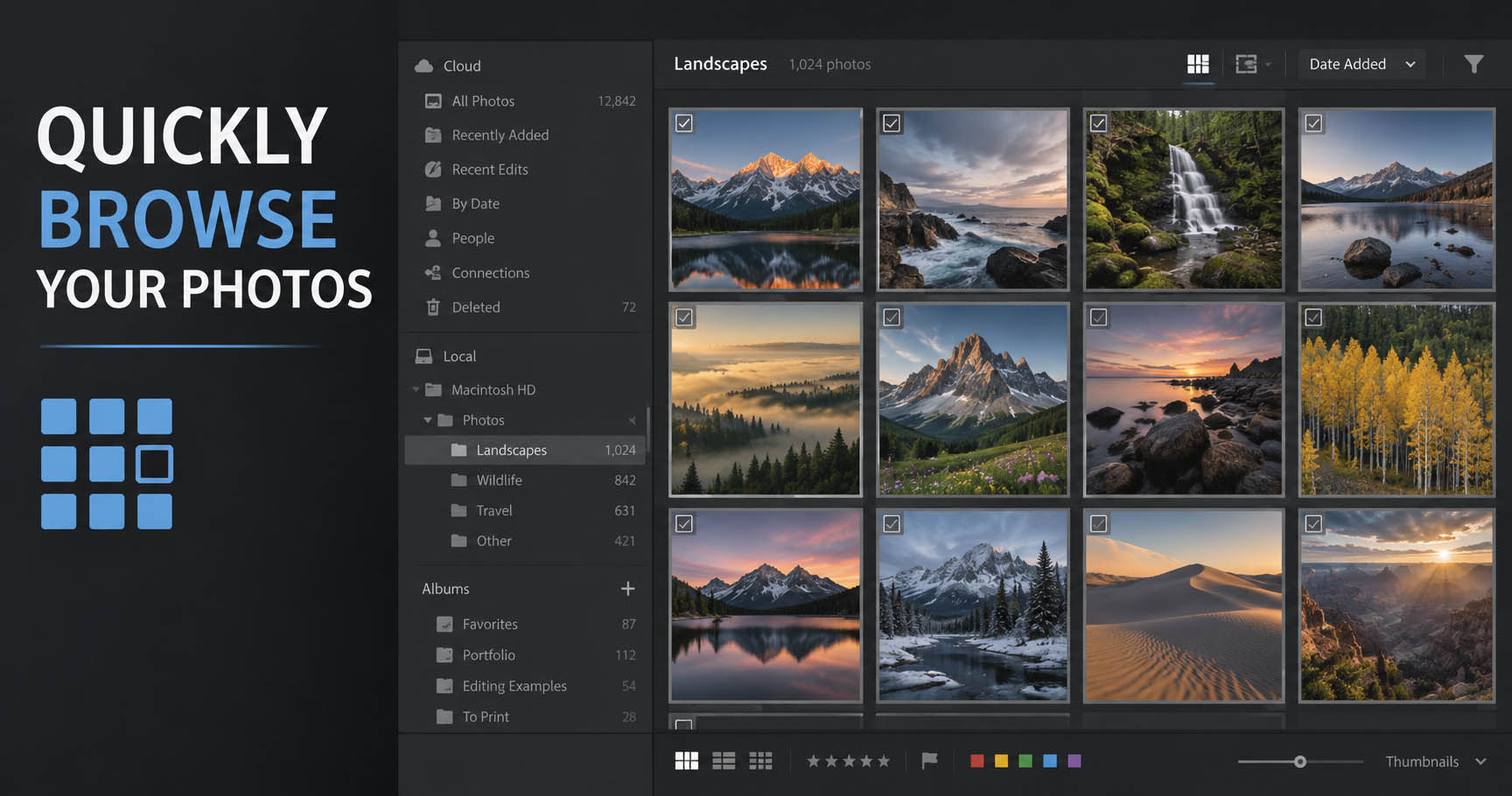
Step 1 of 5
Quick Browse Your Photos
Start off with the way looking at your photos should be… easy!
Just load your photos from your memory card on to a hard drive (or choose a folder that's already there) and you can use Lightroom to instantly look through and browse your photo shoots.
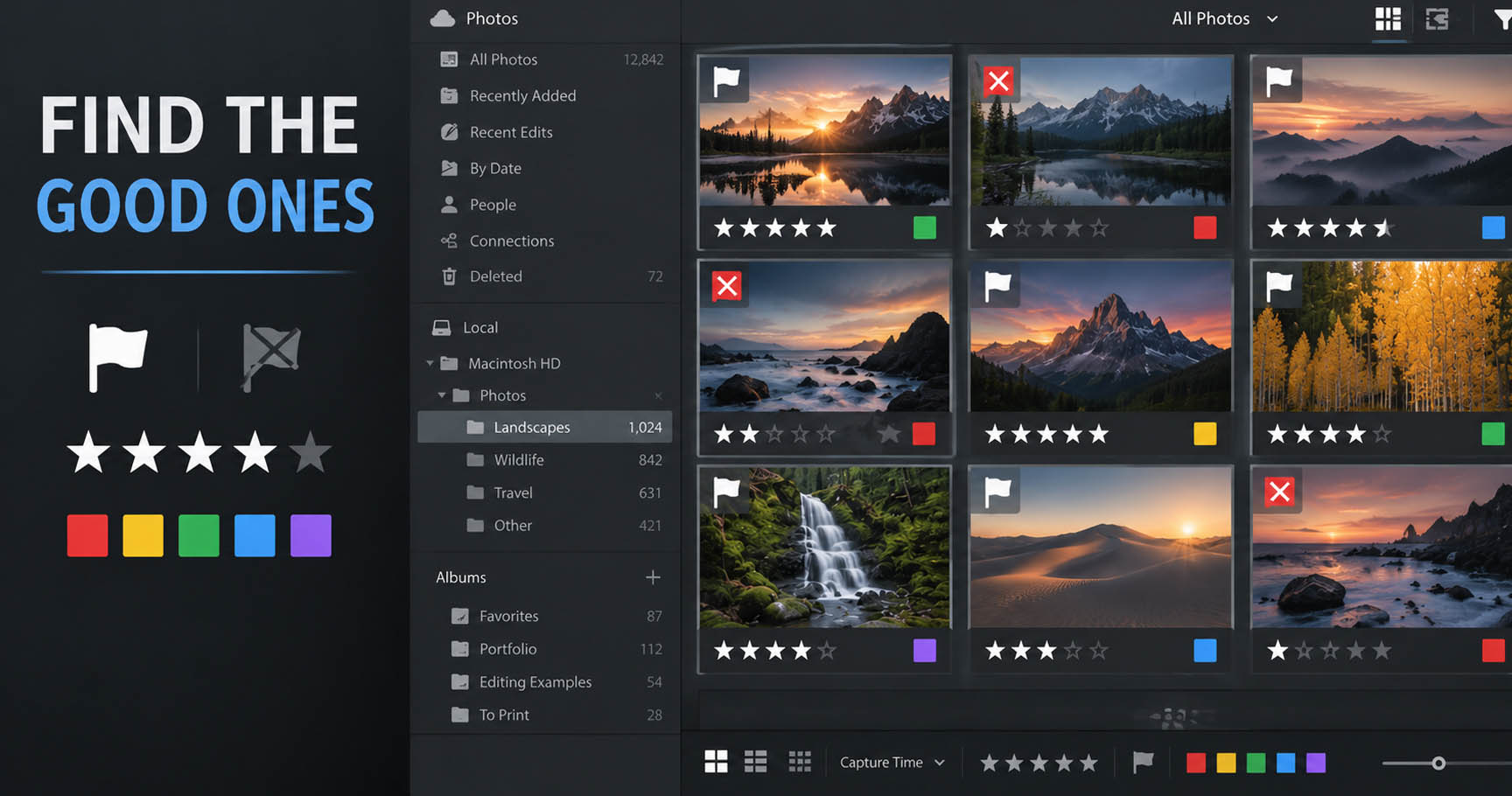
Step 2 of 5
Find the Good Ones
Once you start looking through your photos you'll want an easy way to sort and mark your favorite ones so you can find them again later.
Lightroom has the standard Flags, Ratings and Color Labels as well as keywords so you can always find your photos fast.
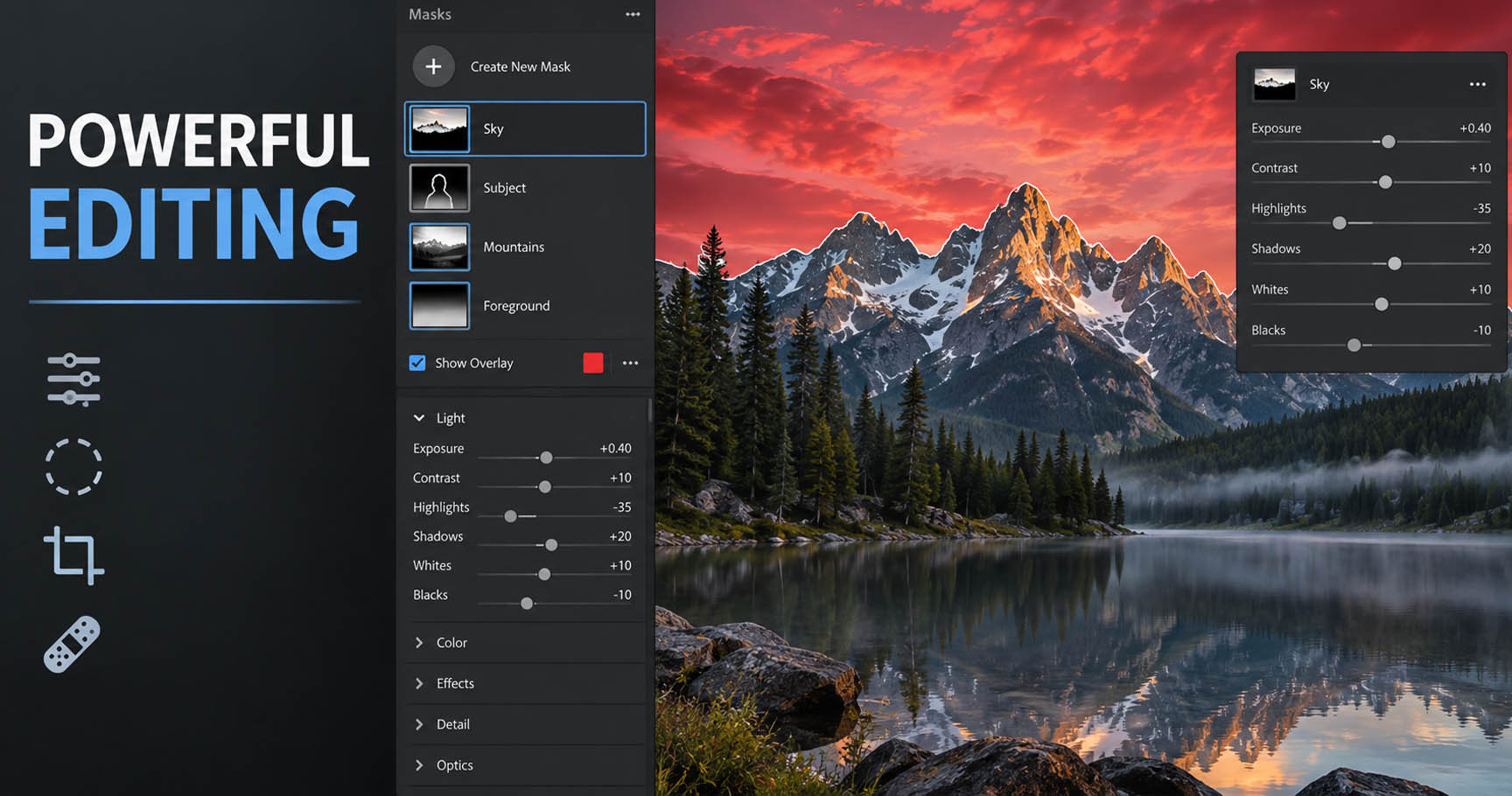
Step 3 of 5
Edit Raw or JPGs with the Same Powerful Tools
Adobe has one of the best raw editors out there (also works for JPGs).
Use Lightroom's editing tools to not only edit the Light, tone, color and contrast in your photos, but also work with the most powerful masking and distraction removal tools.
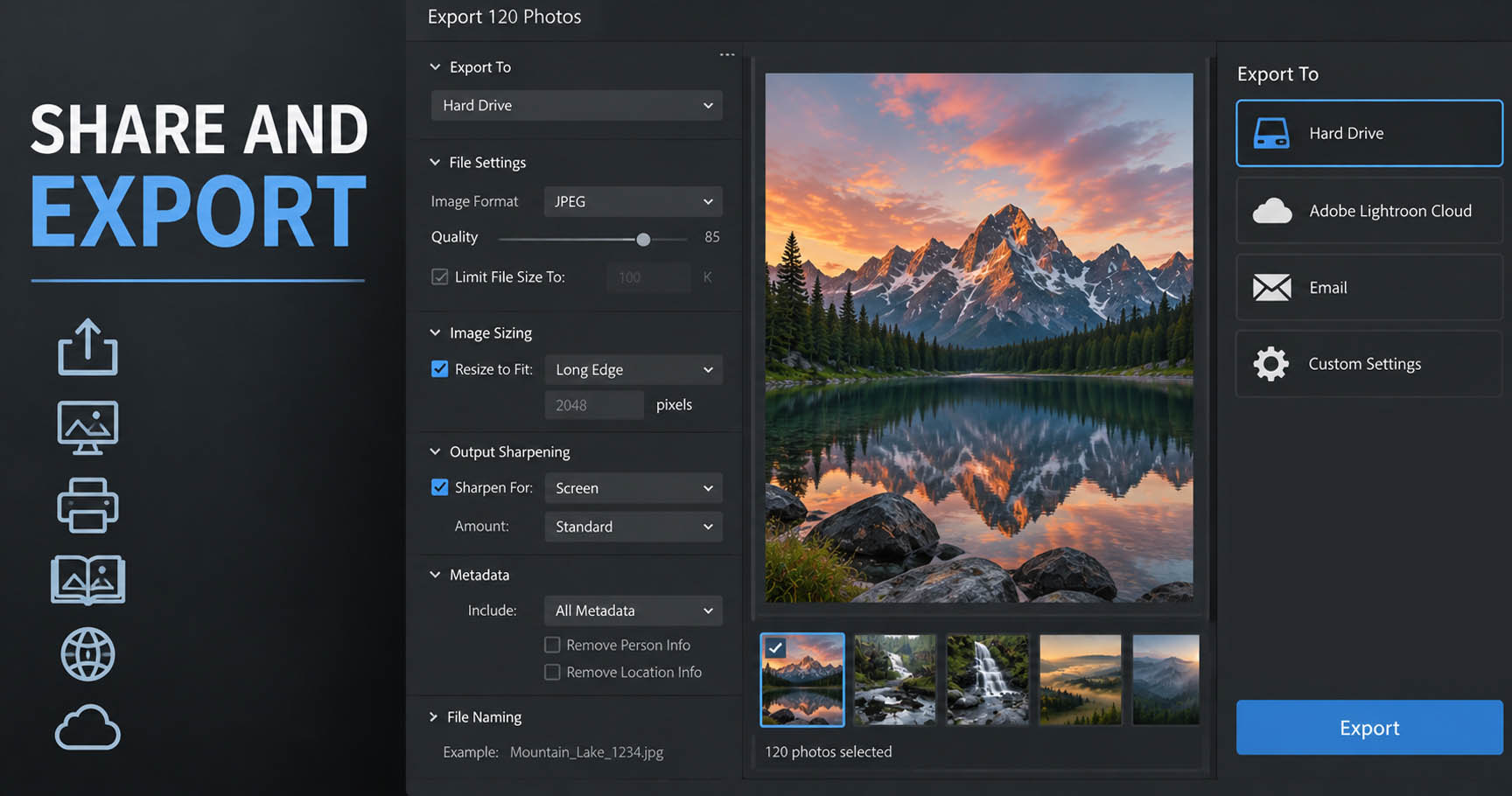
Step 4 of 5
Share and Export
When you're done, you can save and share your photos in any format and on to any device.
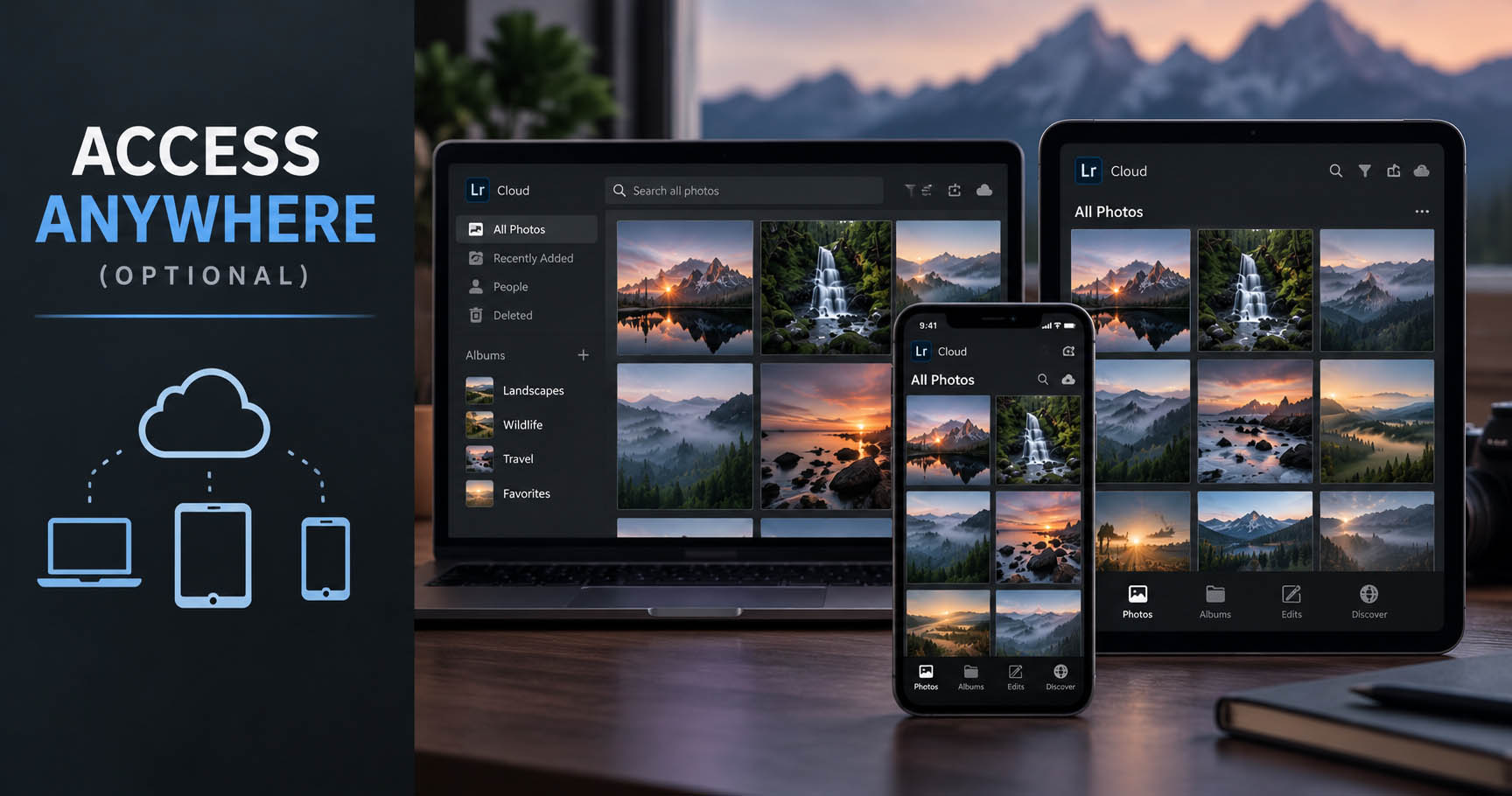
Step 5 of 5
Access AnywhereOptional
I've also included a "Cloud" section of the course that shows you how you can use the cloud features in Lightroom if you want to work on your photos while on the iPad, tablet or even a phone.
Learn all about how Lightroom uses your cloud space so you know exactly how much you need and how much you have.
Get A Look Inside
The course contains 50 lessons, in short 5 minute easy-to-follow videos. Also includes follow along images.

See The Course Outline
Click Here To View Outline
Sticking With
Lightroom Classic?
No Problem!
“Lightroom and Lightroom Classic share the same core editing tools. When I teach editing — Light, Tone, Color, Masking, Distraction Removal, Presets, Noise Reduction and the rest — the techniques work the same way in Lightroom Classic.
— Matt Kloskowski The Lightroom CC, Cloud, Desktop, Classic, or whatever… Guy 😉
You don't have to switch to Lightroom to keep learning from me.
Lightroom and Lightroom Classic share the same core editing tools. When I teach editing — Light, Tone, Color, Masking, Remove, Presets, Noise Reduction and the rest — the techniques work the same way in Lightroom Classic.
I use Lightroom more these days because I like the simpler organization it offers and that I can get to editing faster.
That doesn't mean I'm leaving Lightroom Classic users behind.
Remember… I don't ever teach organization because I simply don't spend time myself on it. I've always only taught editing, and whether you use Lightroom Classic, Lightroom (or Camera Raw) the editing workflow and tools are identical.
PS: I switched over 2 years ago, and my guess is that you've had no problem with my editing tutorials since 🙂
Included With Extended
Get More with the Extended Edition
Jump start your Lightroom Editing with 7 Full Start to Finish Walkthroughs covering various genres and tools in Lightroom so you feel comfortable knowing exactly where everything is and how the workflow comes together.

Watch: what's included with Extended
Training
3+ hours of workflow training
Access
Desktop / Tablet / Download / Stream
Follow Along Files
Includes follow along images
Choose Your Version
Go Basic, Or... Get the Extended Version
Both include the complete course. Extended adds hands-on practice files and full start to finish, guided edit walkthroughs.
Basic
The complete course, start to finish.
- 50 lessons in short, easy-to-follow videos
- All course videos + Some Follow-along files
- This Week Only - One Year of Free Updates
Extended
Everything in Basic + 7 Full Start to Finish Walkthroush
- Everything in Basic (50 lessons, all videos, follow-along files)
- 7 Raw Practice Files to edit along with
- 7 Full Guided Edits — video walkthroughs of complete edits that build on the course and improve your Lightroom Edit and Full Workflow Skills
- This Week Only - One Year of Free Updates
What Students Say
What others are saying about the course.
Real notes from photographers who went through the course - shared with their permission.
I switched to Lightroom 2 years ago and never looked back. It's got all of the editing features I needed from LRC and none of the catalog hassle.
Rachel K.
Wedding photographer
I didn't think Lightroom could do what Classic does. Turns out I was wrong. It does everything I need. Thanks Matt for making the move simple.
Dave M.
Landscape shooter, 12 years
This course covered everything I needed to know about Lightroom. Matt teaches a very simple organizational system that protects my photos, helps me edit faster and gives me all of the flexibility I need.
Jamie T.
Portrait photographer
As a newbie to the Adobe world, I found Lightroom simpler. I installed it, and I was looking through my photos and editing within minutes. This let's me get back to shooting and enjoying photographer faster.
Sam P.
Hobbyist, bird photography
Some replies are lightly edited for clarity.
Why did I switch?
- No Catalog or Import - Just a simpler way to organize and edit my photos
- My edits can easily follow me anywhere
- My favorite photos are now always with me
- The option to edit on my computer, phone or tablet
- It just makes my photography life simpler 🙂
Coming From Lightroom Classic?
Here are the questions I hear most from photographers thinking about making the switch.
Do I have to redo all my editing to switch?
No. Specifically your Develop edits, ratings, and keywords move over. I'll show you exactly what carries across and how.
Is Lightroom just a stripped-down version of Lightroom Classic?
When it comes to organizing it has nearly all of the tools you'll need. As for editing, it's the same as LRC (if not a little better). You can do slideshows, work with Photoshop, make web galleries, and even send your photos to the Blurb website to layout for books. The biggest thing it's missing is printing which, to me, can also be done easily through Photoshop if you need to.
Do I have to use the cloud?
Nope. Lightroom let's you work off your hard drive just like you're used to in other apps.
Will my catalog and organization survive the move?
There is no catalog in Lightroom so this isn't a catalog migration. Any photos/folder organization will be the same in Lightroom. I'll show you the actual steps so nothing gets lost in the process.
Does it have all the same editing tools as other Adobe apps?
Yes it does. A few more in some cases. (If you asked this question you're working off of 2-3 year old information)
If I love to print, make slideshows, work with metadata and keywords, should I use Lightroom?
Absolutely not. You will be very disappointed. Close this web browser page immediately knowing you have the best program for you.
But Matt... . How could you use this program when it doesn't have so many features?
Please let me know what features it doesn't have that affect how I view and edit my photos. I've never been happier than the last 2 years when it comes to finding, editing and sharing my photos and the speed I'm able to do it 🙂
Surely Matt, you miss slideshows, printing and maps right?
Nope. I never used Maps. I don't have the need for slideshows. And when I do print, I'm just as happy to jump in to Photoshop, but more often I print with a photo lab anyway. My walls are full. I have very little need to print more photos myself today, and when I do I get just as good results using Photoshop.
Bring Your Lightroom Classic Work With You.
You don't have to start over. I'll show you how to move much of what you've already built in LRC into Lightroom and make it part of your new workflow.
What moves
See how your edits, photos, and organization translate.
What's different
Understand the key differences that matter.
How to move it
Step-by-step guidance for moving much of your LRC work.
What to keep in LRC
Know what works best to leave in Classic.
Make the right choice
Decide if Lightroom is the right everyday workflow for you.
I'll help you transition with confidence.
Lightroom or Lightroom Classic?
Differences Between Lightroom and LR Classic
Watch me walk through how the two apps compare, feature by feature, so you can decide which one fits best for you.
Lightroom vs. Lightroom Classic: the full walkthrough · 3 minutes
At a glance
Equal
Works just as well in both apps
- Sorting and Filtering
- Keywords, flags, ratings and stars
- Global Editing Tools
- Noise Reduction and Detail
- Masking Tools
- Tethered Capture
- Photoshop Integration
- 3rd Party Integration
Lightroom is ahead
Better, or only in Lightroom
- Local Hard Drive BrowsingOnly in Lightroom
- Editing Favorites PanelOnly in Lightroom
- Interface CustomizationBetter in Lightroom
- Web GalleriesBetter in Lightroom
- AI FeaturesBetter in Lightroom
- PresetsBetter in Lightroom
Classic is ahead
Better, or only in Classic
- Catalog OrganizationOnly in Classic
- PrintingOnly in Classic
- Photo BooksBetter in Classic
- SlideshowsBetter in Classic
- Map and GeoBetter in Classic
The complete side-by-side chart, ready to print or keep.
Frequently Asked Questions
If you're question isn't here, please free free to use the Contact button at the top of page.
Is this a subscription?
No. You buy it and you own it. You can log in to your account on this site and stream it online or download the course.
What software does this cover?
This course covers Adobe Lightroom. NOT Adobe Lightroom Classic. You'll know which one by looking at the icon. Lightroom has an LR and Lightroom Classic has an LRC on it.
Does this cover tablet or phone workflow?
This course primarily deals with Lightroom on the desktop/laptop computer with your photos on a hard drive. I do have a couple of videos that show how it interacts with the tablet/phone, but this is not a mobile photography workflow course. (Click here for more info on my Lightroom on the Go course).
What skill level do I need to be?
The course works for nearly all skill levels. Beginners and intermediate users will probably get the most though. The course will assume you know how to take photos from your camera's memory card and put them on a computer or hard drive. From there, I'll teach you everything you need about using Lightroom to view, organize, edit and share those photos regardless of your skill level.
Do I have to start on a particular day?
No. This is a self-paced course. Watch as much as you want, whenever you want.
Does this purchase include Adobe software?
No. You'll need to go to Adobe.com to get Lightroom. No software is included.
Isn't the Cloud from Adobe just a scam to try to get more money from us?
You know, while I think the conspiracy theories are a waste of everyone's time, I do understand distrust in large corporations. But if this were a scam from Adobe, don't you think they'd make it easy to add multiple Terabytes of storage to your 1 TB plan? I think so. But go and try to find a place anywhere on Adobe's website that lets you automatically do this. You can't. You have to call customer support to do it. Which in my opinion is essentially telling you "We don't want you to do it" because we'd probably all rather get a root canal, rather than call the customer support line of one of the largest international companies in the world 😉